
Most articles about email newsletter header design show you pretty examples. Very few tell you why that pretty header collapses into a stack of broken image icons in Outlook for Windows, or why your white logo disappears on a white background in Gmail’s dark mode. The header is the first 100 to 200 pixels of your campaign, it is rendered before anything else, and it is the part of the email that breaks the most often.
This walkthrough builds a newsletter header from scratch, from canvas size to font stack to the conditional code that keeps Outlook honest. If you follow the constraints below, your header will render the same way in Apple Mail, Gmail (web and app), Outlook desktop, Outlook.com, Yahoo and Samsung Mail.
What an email header actually contains
Before touching pixels, define the anatomy. A newsletter header is not just a banner image. In a well built template it is a block made of up to five parts:
- Preheader text: the hidden or visible line that appears next to the subject line in the inbox preview.
- Optional utility bar: “View in browser”, language switch, or a short value line, usually 11 to 13px.
- Logo: the anchor of brand recognition, ideally an image with a real link back to your site.
- Optional navigation: two to four HTML text links, never more.
- Optional hero strip: a slim illustration, issue number, or date line that identifies this specific edition.
Everything else belongs to the body of the email, not to the header. The single most common mistake is turning the header into a 600×400 pixel poster that pushes the actual content below the fold. mailpro.com published something useful on the subject.
Step 1: lock your dimensions before you design
Email is not the web. There is no flexible container that behaves everywhere. You design inside a fixed width and let the mobile version scale down.
| Element | Recommended | Maximum | Why |
|---|---|---|---|
| Email container width | 600px | 680px | The Outlook desktop reading pane and most webmail panes clip beyond 640px |
| Header height (desktop) | 60 to 150px | 200px | Above 200px your first content block falls below the fold in a preview pane |
| Logo display width | 140 to 200px | 240px | Stays legible at 320px viewport without scaling tricks |
| Logo display height | 30 to 60px | 80px | Keeps vertical space for content |
| Exported image size | 2x the display size | 2x | Retina screens; 3x adds weight with no visible gain |
| Header image weight | Under 50KB | 100KB | Gmail clips the whole message above 102KB of total HTML |
| Mobile viewport target | 320px to 430px | – | iPhone SE to Pro Max range still in circulation |
The retina rule in one line
Export the header artwork at 1200px wide for a 600px container, then set width="600" in the HTML attribute and width:600px; in the inline style. Never let the browser guess. Outlook for Windows ignores CSS max-width on images and will display the image at its natural pixel size, which means a 1200px export with no width attribute blows your layout apart.
File formats that behave
- PNG-8 or PNG-24 for logos and flat graphics with transparency.
- JPG for photography, quality 70 to 80.
- GIF only for short animations, and always with a meaningful first frame because Outlook desktop shows frame one and stops.
- Avoid SVG and WebP. SVG is blocked or stripped in Gmail, Outlook and most webmail. WebP support is still inconsistent across Outlook builds as of 2026.
Step 2: choose a layout pattern that degrades well
There are four patterns that work across clients. Everything else is a variation.
1. Logo left, single row
The safest option. Logo aligned left, optional “View online” link aligned right, white or brand colour background. It looks identical everywhere, it never needs stacking rules, and it costs you 60 to 80px of vertical space.
2. Centred logo
Visually calm, works well for editorial newsletters. Centre alignment is handled correctly even by Outlook’s Word rendering engine as long as you use align="center" on the table cell and not flexbox.
3. Logo plus navigation row
Two to four HTML text links under or beside the logo. Keep tap targets at a minimum of 44×44 pixels including padding. On mobile, either stack the links or reduce them to two. Never use more than four items: the header becomes a wall of small blue text.
4. Banner with issue identity
Logo plus a slim strip carrying the issue number, date or section name. This is the pattern for weekly digests. Keep the strip at 28 to 40px tall and build it with a background colour plus live text, not an image.
Where the logo should sit
Left alignment wins for scanning in Latin script languages, centre alignment wins for symmetry in digest formats. What matters more than the choice is consistency across every campaign, because recognition happens in under a second in a crowded inbox. Keep a clear space around the logo equal to at least half its height, and always wrap the logo in a link pointing to your homepage with a UTM parameter.
Step 3: the image-to-text ratio that survives blocked images
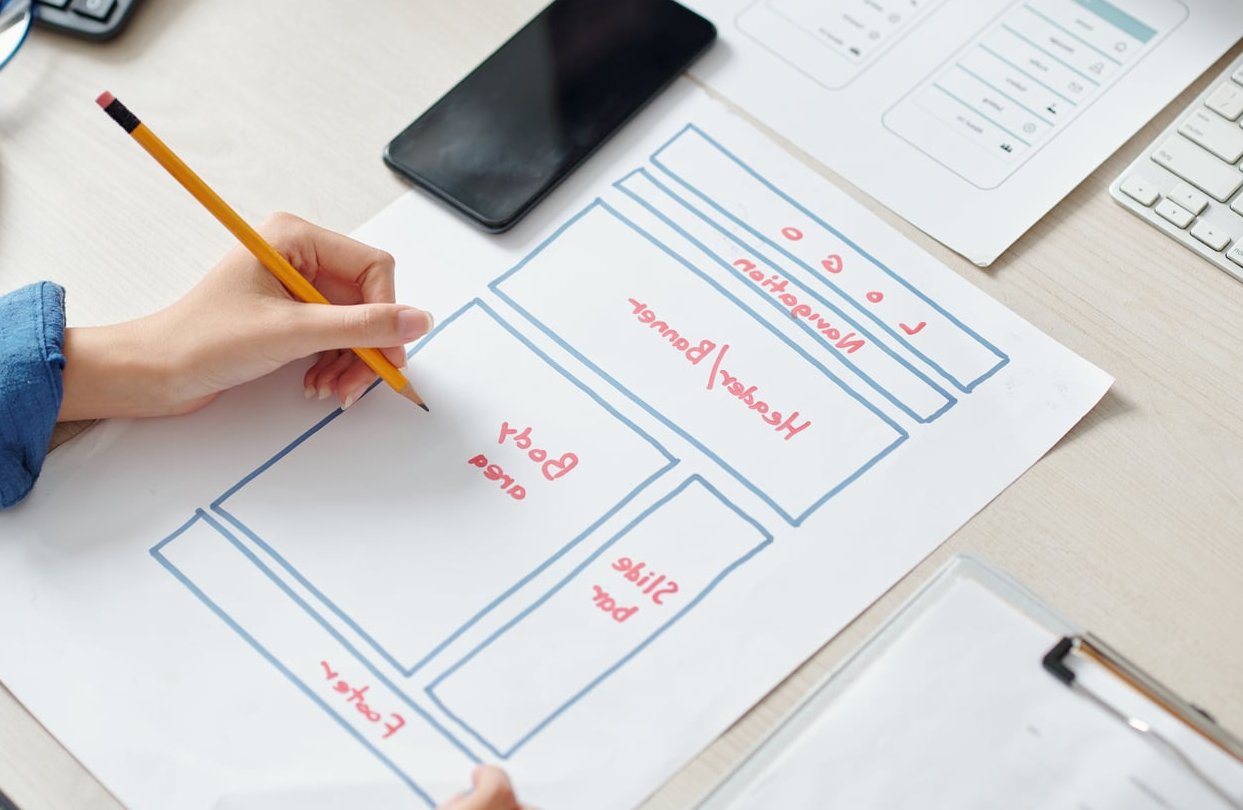
Image blocking is still on by default in Outlook desktop for external senders, and many corporate gateways strip images before delivery. If your entire header is one flat image, a significant slice of your list sees an empty rectangle. A fuller account is out there.
Practical rules:
- Never build a header that is 100% image. Aim for roughly 60 to 70% image, 30 to 40% live HTML text in the header block.
- Set a background colour on the header cell with the
bgcolorattribute so the block keeps its shape when images do not load. - Style your alt text. Add inline styles on the image tag (font-family, font-size, color, line-height) so blocked images still show branded, readable text rather than 11px system serif.
- Give the image explicit width, height and display:block to avoid gaps under images in Gmail and Outlook.
- Keep the preheader as real text, never as an image, since it feeds the inbox preview.
Spam filters no longer apply a crude image-to-text percentage rule, but an email with almost no parsable text and one heavy image still scores worse on engagement-based filtering. The practical reason for live text is rendering, not spam folklore.
Step 4: dark mode, where most headers actually break
Dark mode is the number one cause of “the header looked fine in the builder” tickets. Clients fall into three behaviour groups.
| Behaviour | Clients | What it means for your header |
|---|---|---|
| No change | Apple Mail (with media query support), some Gmail web setups | You control the result with prefers-color-scheme |
| Partial inversion | Gmail app on Android and iOS | Light backgrounds and dark text may be flipped, mid tones often left alone |
| Full forced inversion | Outlook.com, Outlook Windows dark mode, Samsung Mail | Every colour is rewritten, media queries are ignored |
Five rules that prevent dark mode disasters
- Never ship a transparent PNG logo in black. On a forced dark background it becomes invisible. Use a logo with a light or coloured version, or give the logo a solid background matching a colour that survives inversion.
- Add a subtle outline or padded solid plate behind monochrome logos. A 8 to 12px padded white or brand-colour plate keeps the mark readable on both themes.
- Use the dark mode meta tags:
<meta name="color-scheme" content="light dark">and<meta name="supported-color-schemes" content="light dark">in the head, plus a@media (prefers-color-scheme: dark)block for Apple clients. - Avoid pure #FFFFFF and pure #000000 in the header. Off-white (#F7F7F5) and off-black (#111111) invert more gracefully and reduce harsh flips.
- Test with the images off and dark mode on at the same time. That combination is the real worst case.
Step 5: font rules for headers
Web fonts do not load everywhere. Assume they will fail and design for the fallback.
| Client | Web fonts |
|---|---|
| Apple Mail, iOS Mail | Supported |
| Outlook for macOS | Supported |
| Samsung Mail | Supported |
| Gmail (web and apps) | Not supported |
| Outlook for Windows | Not supported, falls back to Times New Roman if the stack is malformed |
| Yahoo, AOL | Not supported |
Practical typography constraints
- Always end your font stack with a generic family (sans-serif or serif). Without it, Outlook for Windows defaults to Times New Roman and your clean header turns Victorian.
- Minimum sizes: 14px for header navigation, 12px absolute floor for utility links, 11px only for legal or “view in browser” lines. iOS bumps anything under 13px upward in some contexts, which breaks alignment.
- Use only two weights in the header, typically regular and bold. Outlook renders synthetic weights poorly.
- Avoid letter-spacing below 0.3px. Outlook’s rendering rounds it in unpredictable ways.
- Put your distinctive brand typeface in the logo image, not in live text. That way the personality survives everywhere and the fallback only affects secondary text.
Reliable fallback stacks: Helvetica Neue, Helvetica, Arial, sans-serif for neutral brands, Georgia, Times New Roman, serif for editorial ones, and Segoe UI, Roboto, Helvetica, Arial, sans-serif when you want a system look.
Step 6: the code skeleton
Here is a header block that handles a fixed width, retina logo, styled alt text, background colour fallback and Outlook’s quirks. Drop it inside your template’s outer table.
<table role="presentation" width="100%" cellpadding="0" cellspacing="0" border="0" bgcolor="#F7F7F5">
 <tr>
  <td align="center" style="padding:0;">
   <table role="presentation" width="600" cellpadding="0" cellspacing="0" border="0" style="width:600px;max-width:600px;">
    <tr>
     <td align="left" valign="middle" style="padding:20px 24px;">
      <a href="https://ff2d.com/?utm_source=newsletter" target="_blank">
       <img src="https://ff2d.com/img/[email protected]" width="180" height="40" alt="FF2D"
        style="display:block;border:0;outline:none;width:180px;height:40px;font-family:Helvetica,Arial,sans-serif;font-size:18px;font-weight:bold;color:#111111;text-decoration:none;">
      </a>
     </td>
     <td align="right" valign="middle" style="padding:20px 24px;font-family:Helvetica,Arial,sans-serif;font-size:12px;line-height:18px;color:#555555;">
      <a href="*|ARCHIVE|*" style="color:#555555;text-decoration:underline;">View in browser</a>
     </td>
    </tr>
   </table>
  </td>
 </tr>
</table>
Three details worth noting:
role="presentation"stops screen readers from announcing the layout tables as data tables.- The
bgcolorattribute on the outer table is the fallback when CSS is stripped. - The font styles on the
imgtag are what your alt text inherits when images are blocked.
Outlook conditional wrapper
If your header uses a centred container with rounded corners or a background image, wrap it in an MSO conditional so Outlook gets a plain table while everyone else gets the styled version:
<!--[if mso]>
<table role="presentation" width="600" align="center" cellpadding="0" cellspacing="0" border="0"><tr><td>
<![endif]-->
... your header markup ...
<!--[if mso]>
</td></tr></table>
<![endif]-->
Step 7: the pre-send checklist
- Container is 600 to 640px, image widths declared in both attribute and inline style.
- Logo exported at 2x, weight under 50KB, alt text written and styled.
- Header block height under 200px on desktop.
- Background colour set with
bgcolor, not only CSS. - Dark mode meta tags present, logo readable on dark background.
- Font stacks end with a generic family, no text under 12px except legal lines.
- All header links open in a new tab and carry tracking parameters.
- Preheader text written (40 to 90 characters) and hidden properly if it should not be visible.
- Tested with images off, in dark mode, and at a 320px viewport.
- Rendered in at least Outlook Windows, Gmail app, Apple Mail and Outlook.com.
Seven mistakes that keep showing up
- Slicing the header into multiple images. Outlook adds hairline gaps between slices. Use one image per row.
- Animated GIF logos. Outlook desktop freezes on frame one, so if your brand only appears on frame six, it never appears.
- Text baked into the header image. Unreadable when blocked, unscalable on mobile, invisible to accessibility tools.
- Background images without a VML fallback. Outlook ignores CSS background images entirely.
- Header navigation with six or more links. Nobody clicks them and they eat the fold.
- Pure white transparent logo. Invisible on light mode, invisible on inverted light mode, invisible almost everywhere.
- Different header per campaign. Recognition is built by repetition, not novelty.
A quick note on mobile
At 320px wide, a 600px header scales to roughly 53% of its size. A 180px logo becomes 96px. That is still legible for a wordmark but marginal for a logo with a tagline. If your logo has a descriptor line, ship a second version for mobile using a media query that hides one image and shows the other, or simply drop the tagline from the email version. Do not rely on max-width:100% alone: add width:100% !important inside the mobile media query and keep height:auto so the ratio holds.
FAQ
What is the recommended header size for a newsletter?
Use a 600px wide container (640px maximum) and keep the header block between 60px and 200px tall. Export images at twice those dimensions for retina screens, so a full-width header banner is exported at 1200px wide and displayed at 600px.
How should an email header look?
Clean, consistent and short. A recognisable logo, a background colour that matches your brand, an optional “view in browser” link and at most four navigation links. It should identify the sender in under one second and leave room for the first content block to appear above the fold.
Should the header be an image or HTML?
A hybrid. Keep the logo as an image (it carries the typeface and the colour), and build everything else, including navigation, taglines and issue numbers, as live HTML text on a coloured background cell. A fully image-based header fails when images are blocked and cannot adapt to dark mode.
Why does my header look different in Outlook?
Outlook for Windows uses the Word rendering engine. It ignores CSS max-width on images, background images, most modern CSS layout properties, and web fonts. Fix it by declaring image widths with HTML attributes, using nested tables instead of divs, setting bgcolor attributes, and wrapping fragile sections in MSO conditional comments.
What image format should I use for an email header?
PNG for logos and flat graphics, JPG for photos at 70 to 80% quality, GIF only for short animations with a meaningful first frame. Avoid SVG and WebP, which are unreliable across Outlook, Gmail and several webmail clients.
How do I stop my logo disappearing in dark mode?
Do not use a monochrome transparent PNG. Provide a version on a solid padded background, or supply two versions swapped by a prefers-color-scheme media query for Apple clients, and pick brand colours that stay legible when Outlook.com forces a full colour inversion.
Final word
Good email newsletter header design is 20% aesthetics and 80% constraint management. Lock the width, keep the height tight, split the block between one image and live text, plan for blocked images and forced dark mode, and end every font stack with a generic family. Build that once as a reusable module, and every campaign after it renders predictably instead of hopefully.